How to Find a Website You Visited but Can’t Remember the Name

Trying to find a website you visited but forgot the name? You read something genuinely useful — a guide, an article, a Stack Overflow answer that fixed your exact problem — then closed the tab and moved on. A week later you need it again, and all you remember is roughly what it was about: not the title, not the site, not a single exact word.
So you open your history, type a word you think was in the title, and get nothing. Then you re-Google it, open five wrong links, and eventually give up and rebuild the same answer from three other articles.
If that sounds familiar, here is every practical way to find a website you visited but forgot the name — starting with the built-in tricks, and ending with the one thing your browser genuinely can’t do (and how to fix it).
1. Search your browser history (Ctrl+H)
The obvious first step. In Chrome, press Ctrl+H (Cmd+Y on Mac) or open chrome://history, then type what you remember.
The catch: Chrome’s history search only matches the page title and the URL. It does not search the text that was actually on the page. So if you remember the content but not the exact title, you often get nothing — even though the page is sitting right there in your history.
Tip: use shorter, more distinctive words. Try “negotiation” instead of “how to ask for a raise.”
2. Browse your history by date
If you roughly remember when you read it (last Friday, two weeks ago), don’t search — scroll. chrome://history lets you browse chronologically. Tedious, but reliable when you have a rough time window.
3. Check Google “My Activity”
If you’re signed into Chrome with sync on, much of your activity is also at myactivity.google.com. It sometimes surfaces things your local history doesn’t, and you can filter by date and product. (This is the cloud side — if you care about privacy, you may already have it turned off.)
4. Re-trace how you got there
Think about the path. Was it a link from Twitter/X, a Reddit thread, a newsletter, or a Google search? Going back to the source is often faster than history search. Check your search history for the query you originally typed.
5. Reopen closed and open tabs
Ctrl+Shift+T reopens recently closed tabs one at a time. And if you’re a tab hoarder, it might still be open — use Chrome’s tab search (Ctrl+Shift+A, or the ˅ arrow at the top-right of the tab strip) to search open tabs by title.
6. Search by what the page was about — not its title
Here’s the real gap. Every method above depends on you remembering the exact title, URL, or date. But usually you remember the opposite: the idea, the argument, a rough phrase — not the label.
Your browser can’t help here because it only indexes titles and URLs, not page content. That’s a deliberate choice — keeping a full-text index of every page you visit would bloat the local database — but it’s exactly why “I know I read it, I just can’t find it” happens so often.
The fix is a tool that indexes the actual content of the pages you read and lets you search by meaning. You describe what you remember — “that article about staying focused while working from home” — and it finds the page even if none of those words were in the title.
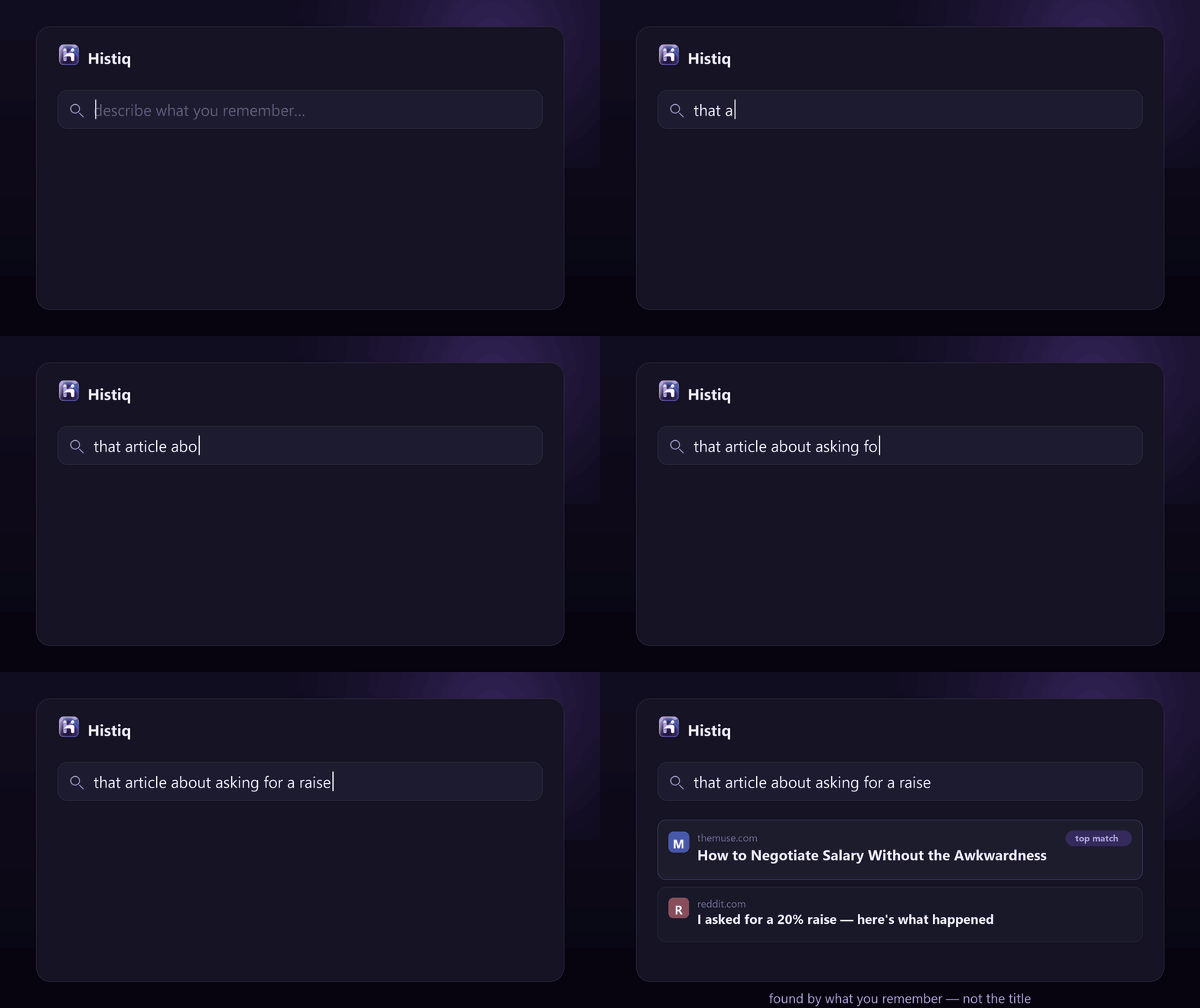
This is exactly what I built Histiq for. It’s a Chrome and Edge extension that quietly indexes the full text of the pages — and PDFs — you read, and lets you search them by meaning later. It tries exact keyword matching first, and if that finds nothing, it falls back to semantic search over the content. And because your browsing history is about the most sensitive data you have, it runs 100% on your device — nothing is uploaded, and you can verify that yourself in DevTools › Network.
How to find a website you visited but forgot the name: the short version
- Chrome history search (Ctrl+H) only matches titles and URLs, not page text.
- Date filters, My Activity, and re-tracing your steps help when you remember when or how you found it.
- When you only remember what it was about, you need content-based, semantic search — which the browser doesn’t do on its own.
Curious how many forgotten pages are already sitting in your history? Start a 14-day free trial — no credit card, no account, and your history never leaves your device.
Install Histiq for Chrome & Edge →