How to Search Chrome History by Content
If you’re trying to search Chrome history by content — the actual text on the pages you visited, not just their titles — you’ve probably noticed it doesn’t work. You remember a specific phrase from an article, a code snippet, a line from the docs. You hit Ctrl+H, type it in, and Chrome returns nothing. The page is in your history. Chrome just can’t see inside it.
Here’s why that happens, what you can actually do about it today, and how to search Chrome history by content for real.
Why Chrome history search only matches titles and URLs
When you search your history, Chrome looks at exactly two things: the page title and the URL. It never stores or searches the body text of the pages you visit.
This is deliberate. Keeping a full-text index of every page you open would mean writing large amounts of text into the local history database (SQLite) on every single visit — more disk, more write I/O, a slower browser. So Chrome keeps history lightweight: titles and URLs only. Great for performance, useless the moment you remember what the page said instead of what it was called.
1. Sharpen your keyword search
You’re still limited to titles and URLs, but you can squeeze more out of them. Use the most distinctive word you can remember from the title. Open chrome://history and try single, rare words rather than phrases. It’s a workaround, not a fix — if the words you remember were in the body and not the title, you’ll still get nothing. (If you don’t remember any exact words at all, only the gist, see our guide on how to find a website you visited but forgot the name.)
2. Check Google “My Activity”
If you’re signed into Chrome with sync on, more of your activity lives at myactivity.google.com, with date and product filters. It occasionally surfaces things local history misses. It’s still not full-text search of page content — and it’s the cloud side, which many people deliberately keep off.
3. Use a desktop full-text search tool
Tools like Everything (Windows) or Spotlight (Mac) do proper full-text search — but only over files saved on disk, not pages you visited in the browser. Useful if you download everything you read as PDFs or HTML. For the pages you just opened and closed, they can’t help.
4. Index your history locally — full-text and semantic
The real fix is to keep your own index of the pages you read: their full text, not just titles. That’s the whole idea behind Histiq.
As you browse, it extracts the text of each page (and PDF) and stores it in your browser’s local IndexedDB. Now you can actually search by what was on the page. It goes one step further too: it runs a small embedding model (~22 MB, quantized) on-device, so if exact keywords don’t match, it falls back to semantic search — describe what you remember and it finds the page by meaning.
The reason Chrome doesn’t do this — database bloat and performance — is handled here by running indexing in the background at idle priority and throttling the embedding work, so it doesn’t hog RAM or CPU. And because it’s your browsing history, everything stays local: no cloud, no account, and you can confirm there are no outbound requests in DevTools › Network.
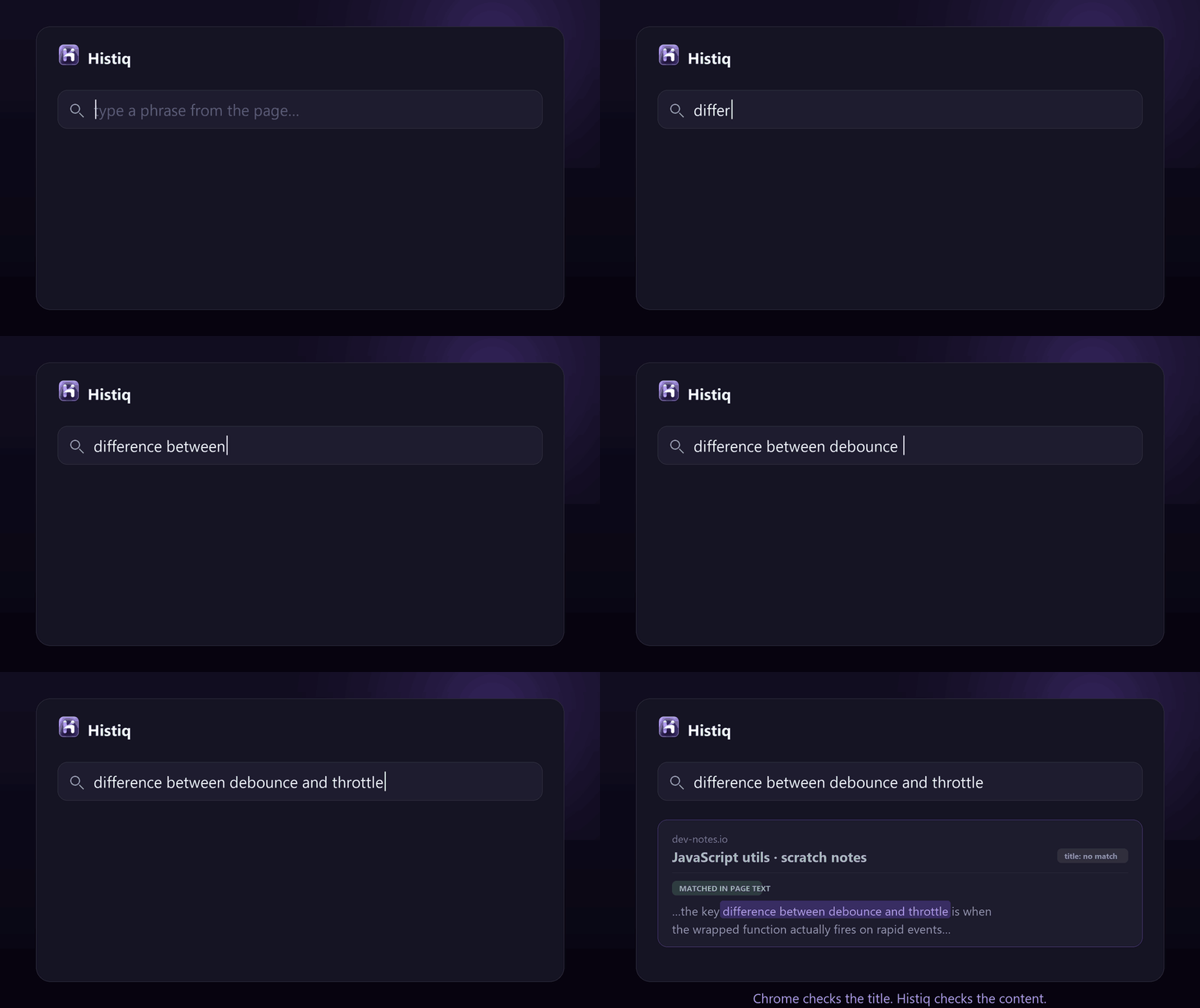
How to search Chrome history by content: the short version
- Chrome history search only matches titles and URLs — never the body text of pages, on purpose (database size and speed).
- Keyword tricks, My Activity, and desktop search tools all help a little, but none search the content of pages you visited.
- To truly search Chrome history by content, you need a local full-text (and ideally semantic) index of the pages you read.
Want to search your history by what pages actually said? Start a 14-day free trial of Histiq — no credit card, no account, and your history never leaves your device.
Install Histiq for Chrome & Edge →