Private Browser History Search: Keep It All On Your Device

Your browsing history is one of the most revealing datasets you own — so private browser history search shouldn’t mean handing all of it to someone else’s server. Yet most tools that let you search your history by content quietly upload the pages you read to do it. There’s a better way: keep everything on your device.
Here’s why history is so sensitive, how to tell whether a tool is actually private, and how to verify it yourself in about ten seconds.
Why your history is your most sensitive data
Think about what a full record of the pages you read reveals: your health questions, finances, job searches, politics, relationships, the documents you open for work. It’s not just a list of links — it’s a map of what’s on your mind. That’s exactly why sending it to a cloud service to make it searchable is a poor trade. You solve one problem (finding things) and create a bigger one (a copy of your private life on someone else’s computer).
The hidden catch with cloud-based history tools
To search the content of pages — not just titles — a tool has to read and index the text of everything you visit. Many do this by uploading that text to their servers, where the indexing and any AI search happen remotely. The result is genuinely useful search, but it means your reading history now lives in their database, subject to their retention, their breaches, and their policy changes.
The privacy-friendly alternative is local-first: do all the reading, indexing, and searching on your own machine, so the data never leaves it.
What “on-device” actually means
On-device (or local-first) means the whole pipeline runs inside your browser: the page text is stored in your browser’s local database (IndexedDB), and even the semantic part — the small AI model that matches by meaning — runs locally on your machine. No account, no server round-trip, no upload. Search works offline, and there’s simply no copy of your history anywhere else. (If you’re new to how meaning-based search works, see semantic search vs keyword search.)
How to verify a tool is really local (3 checks)
Don’t take “private” on the label’s word. You can confirm it yourself:
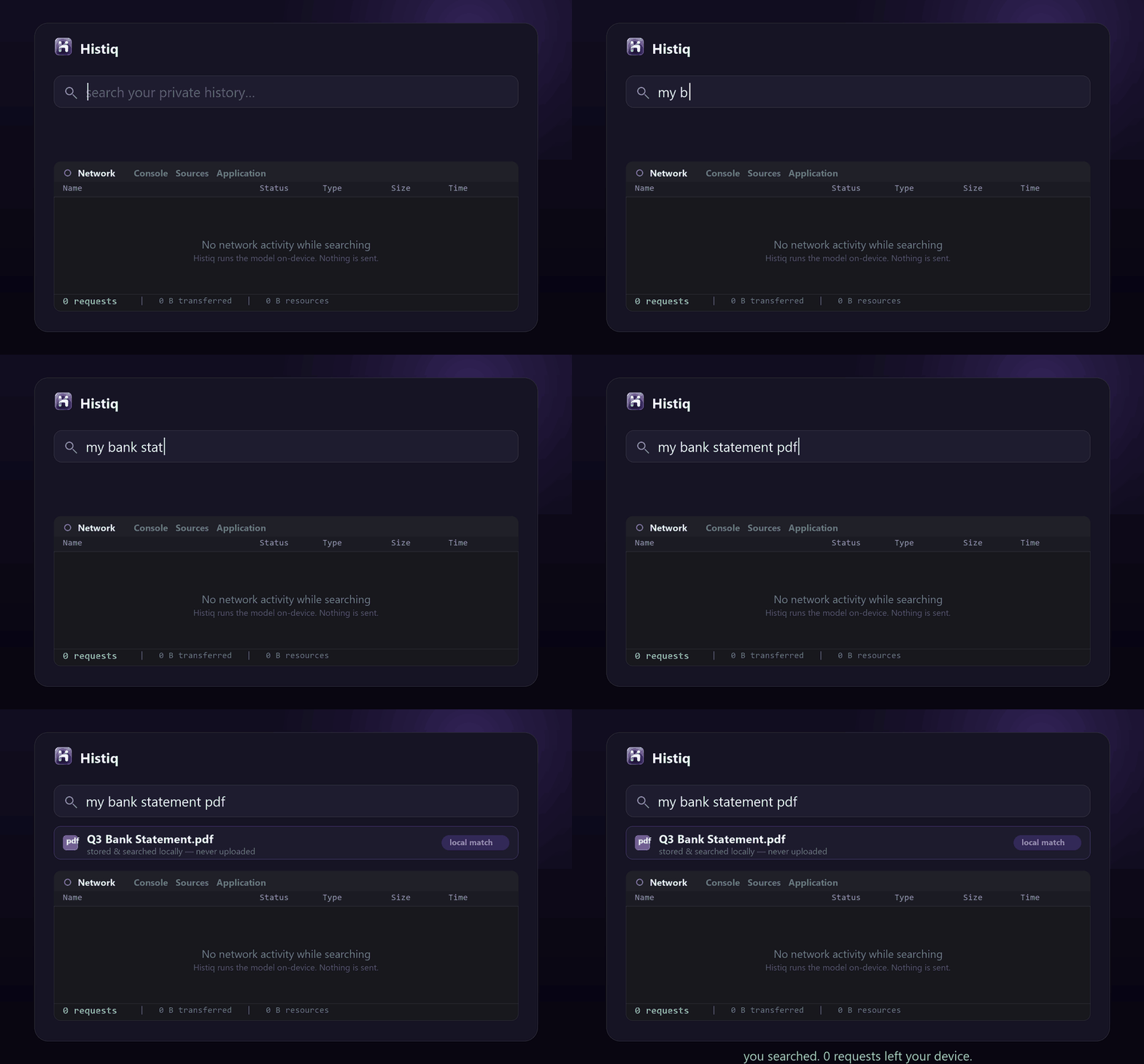
Private by design, not by promise
This is the principle behind Histiq. It indexes the full text of the pages and PDFs you read and lets you search them by meaning — and it does all of it on your device. The embedding model (~22 MB) is bundled and runs locally, storage is your browser’s own IndexedDB, and there’s no account. You don’t have to trust that claim: open DevTools › Network and watch a search happen with nothing going out.
Private browser history search: the short version
- Your history is a map of your private life — searching it shouldn’t mean uploading it.
- Many content-search tools send your pages to the cloud; local-first keeps everything on your device.
- Verify it yourself: no account, zero requests in the DevTools Network tab, and no broad server permissions.
Want content search over your history without giving it up? Start a 14-day free trial of Histiq — 100% on your device, no account, and you can verify it in DevTools.
Install Histiq for Chrome & Edge →