How to Search Your Edge Browser History by Content

If you’ve tried an Edge browser history search and come up empty, you’re running into the same wall Chrome users hit. You remember something specific from a page, you search your history, and Edge returns nothing, even though the page is right there. The reason is simple, and there’s a real way around it.
Here’s why Edge history search misses so much, and how to search it by what pages actually said.
Why Edge history search only finds titles
Edge is built on Chromium, the same engine as Chrome, so its history works the same way: it searches the page title and the URL, and nothing else. It never stores the body text of the pages you visit. So if you remember a phrase or an idea from an article but not its exact title, an Edge history search comes up empty.
This is deliberate. Keeping a full-text index of every page would bloat the local database and slow the browser. Efficient, but useless the moment you remember what a page said instead of what it was called.
1. Sharpen the built-in search
You’re still limited to titles and URLs, but you can squeeze more out of them. Open edge://history and try a single distinctive word from the title rather than a full phrase. It’s a workaround, not a fix.
2. Check your account activity
If you’re signed in and syncing, some activity also lives in your Microsoft account privacy dashboard. It occasionally surfaces things local history misses, though it’s still not full-text search of page content, and it’s the cloud side that privacy-minded people often keep off.
3. Index your history locally, by content
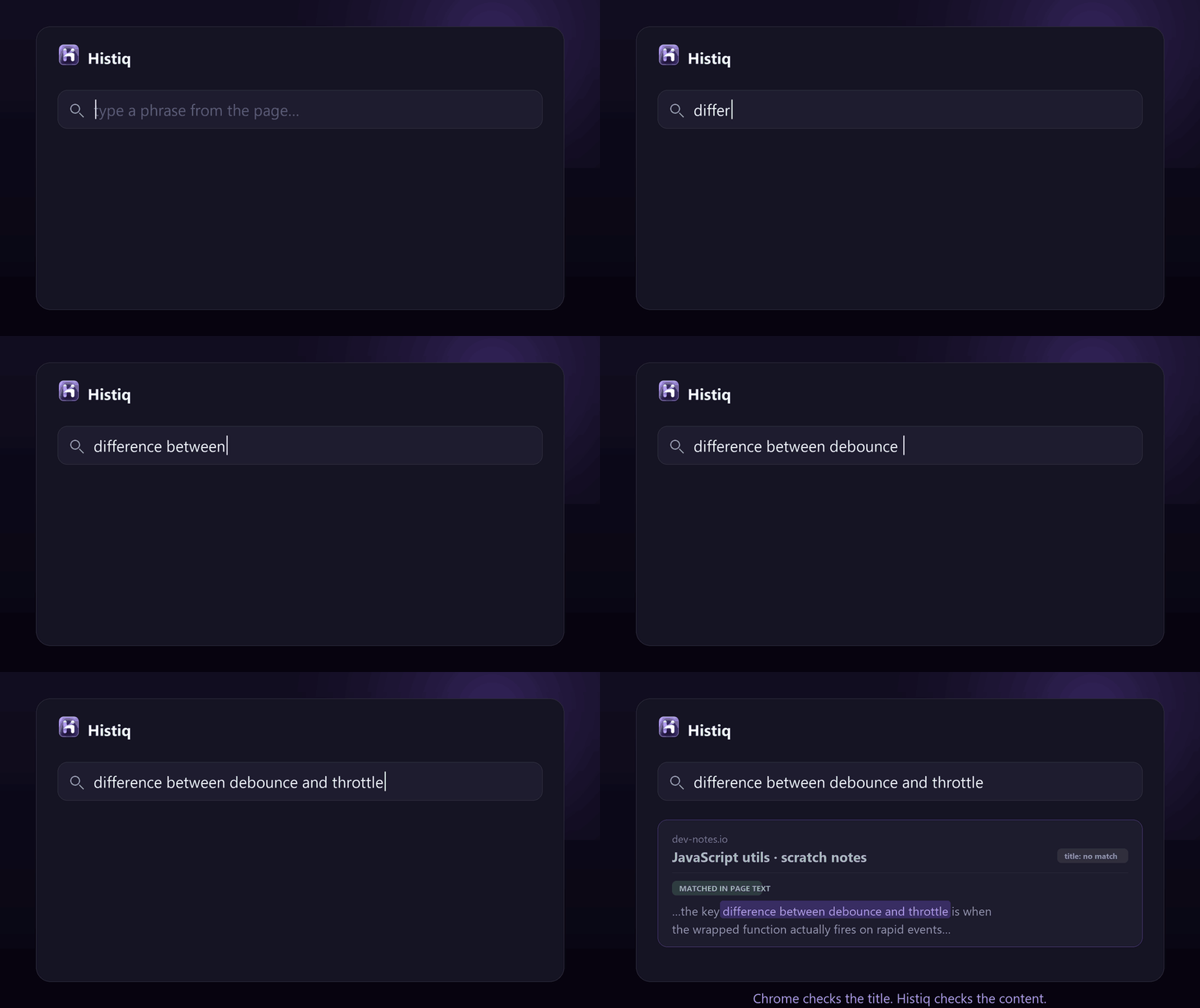
The real fix is to keep your own index of what you read: the full text, not just titles. That’s what Histiq does, and it runs natively on Edge.
As you browse, it extracts the text of each page and PDF and stores it locally. Now you can search by what was on the page. It also runs a small on-device model, so if exact keywords don’t match, it falls back to semantic search and finds the page by meaning. (More on that in semantic search vs keyword search.)
Because it’s your browsing history, everything stays on your device: no cloud, no account. You can verify there are no outbound requests in DevTools › Network.
Edge browser history search: the short version
- Edge (like Chrome) only searches titles and URLs, never the text on the page.
- Keyword tricks and the Microsoft activity dashboard help a little, but neither searches page content.
- To search Edge history by content, keep a local full-text (and semantic) index of what you read.
Use Edge and want to search your history by what pages said? Start a 14-day free trial of Histiq — content search on your device, no account.
Install Histiq for Chrome & Edge →